This guide is for pharmacists and chemists who use the Pharmacy Portal (account role: Pharmacy Admin). Read Getting Started first.
1. Log in and your menu
Use the Pharmacy Portal card on the home page and select Login as Pharmacy. The sidebar contains:
| Menu item | What it is for |
|---|---|
| Dashboard | Summary of orders, stock and refill requests |
| Orders | Pharmacy orders and their delivery status |
| Medicines | Look up the hospital's medicine master (read-only) |
| Stock | Update stock counts |
| Refill Requests | Approve or reject patients' refill requests |
| Prescriptions | Read the hospital's prescriptions |
| Low Stock Alerts | Medicines that are low or out of stock |
2. The pharmacy dashboard
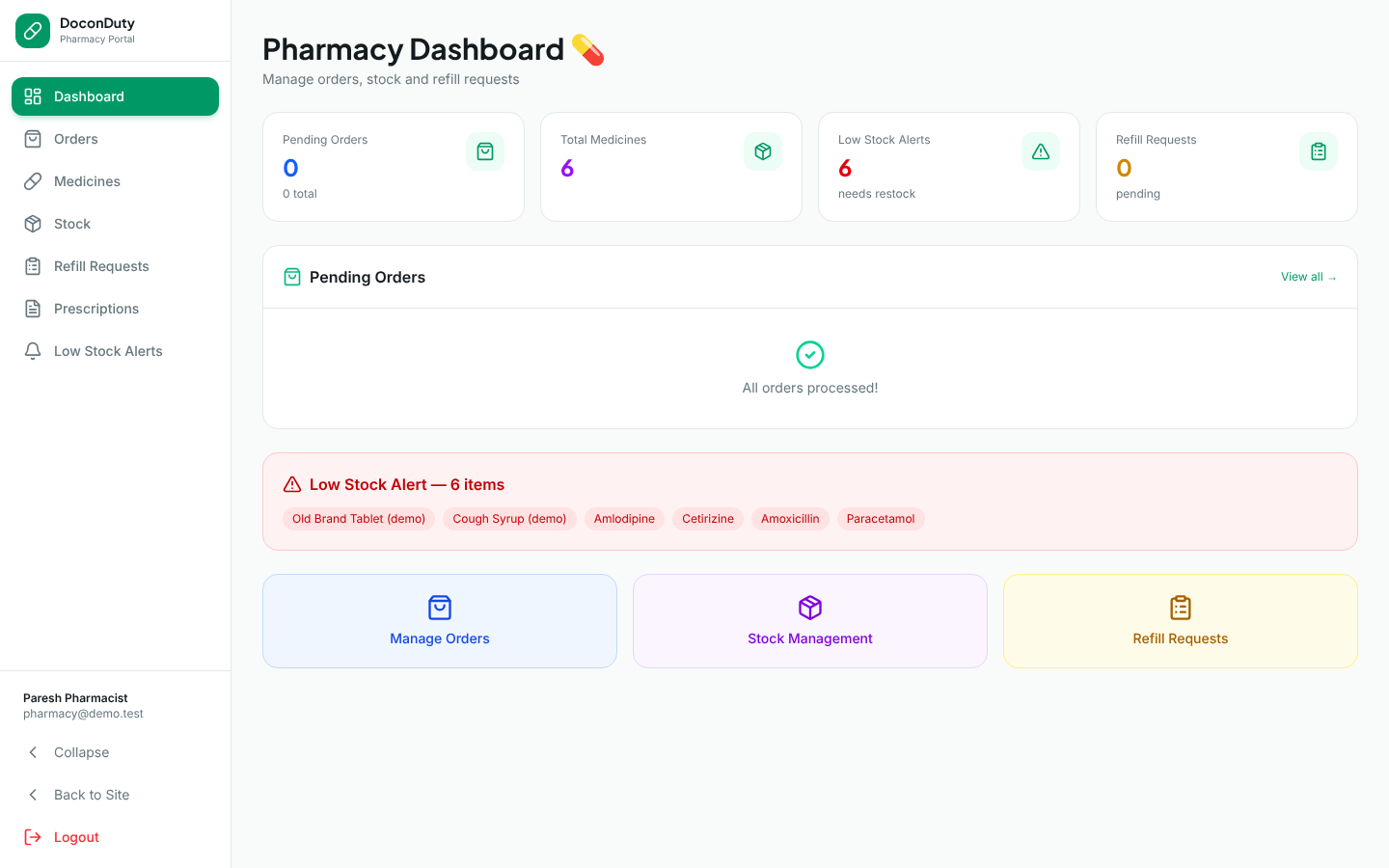
The Pharmacy Dashboard shows counters (including Low Stock Alerts), a Pending Orders list with View all →, and a red Low Stock Alert box listing up to ten medicines that need restocking.
3. Look up medicines
Purpose: Check a medicine's details (strength, form, maker, usage notes).
- Select Medicines (page title Medicine Catalogue).
- Type in Search medicine or brand... or choose a Category.
Note: This page is for looking up only. New medicines are added by your Hospital Admin in the Admin Portal (Medicines) or by doctors (My Medicines). Ask them to add, correct, or deactivate medicines.
4. Update stock
Purpose: Make DoconDuty's stock count match what is physically on the shelf — after a delivery arrives, after a stock count, or after damaged or expired stock is removed.
Who can do this: Pharmacy Admin (Hospital Admins can also do it in Stock Management).
Before you begin: Count the stock. Use the same unit that the medicine is dispensed in (see the medicine's pack or dispensing unit, for example strip of 10).
Steps:
- Select Stock (page title Stock Management).
- Search for the medicine in Search medicine....
- Select Update Stock in the medicine's row.
- The window shows the Current stock. Type the new total in New Stock Quantity — this is the total you now have, not the amount you are adding. Example: the screen shows 20 strips and a delivery of 50 strips arrives → enter 70.
- Select Save.
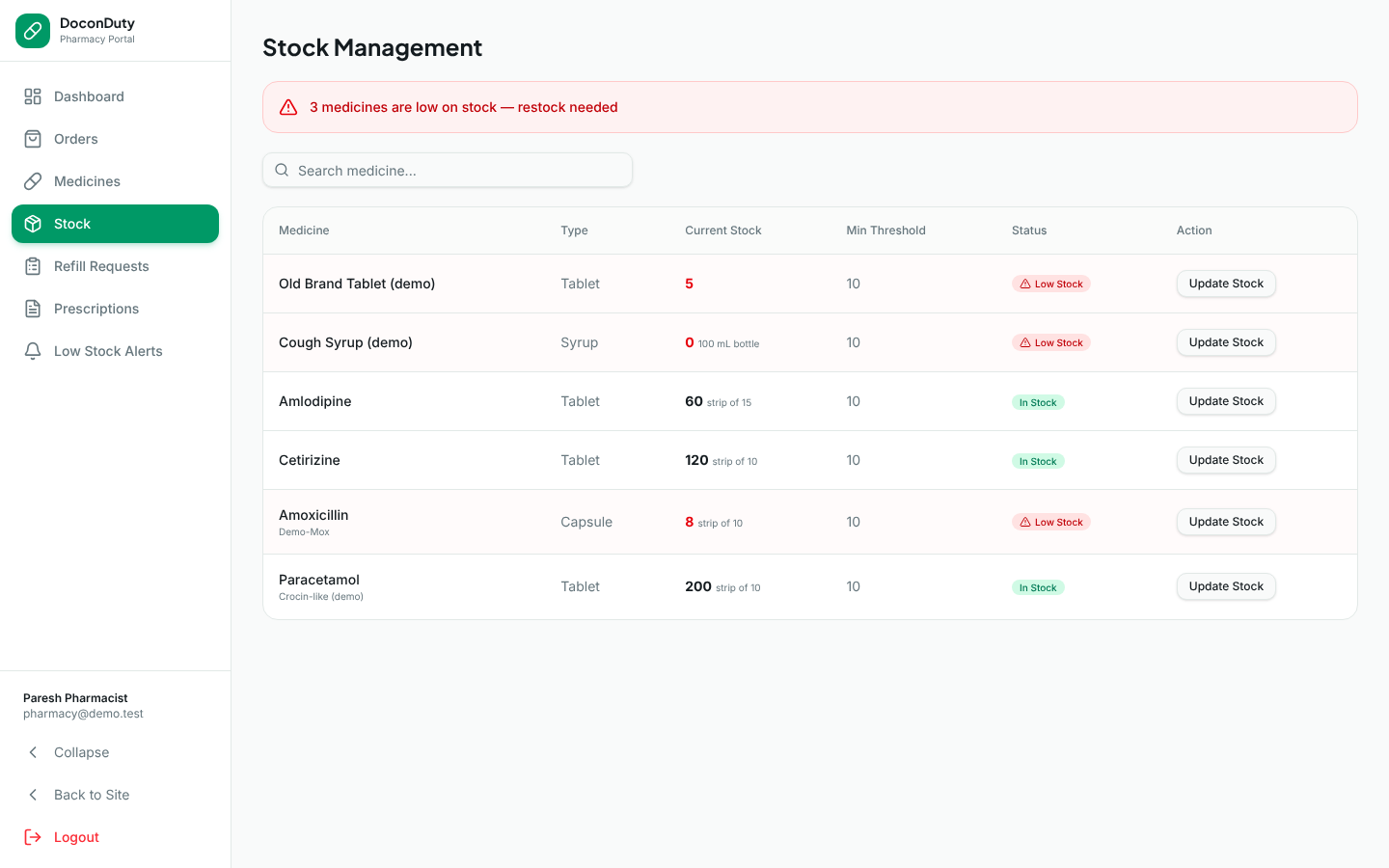
What happens next: The new number appears in Current Stock and the status updates (for example from Low Stock to In Stock).
Note: The Min Threshold (the level that triggers a low-stock warning) can be changed only by a Hospital Admin in Stock Management in the Admin Portal. If no threshold has been set, DoconDuty treats 10 as the threshold.
Important: Stock can never go below zero. If a prescription is dispensed for more than is in stock, DoconDuty refuses it (see section 9). Keep counts accurate so that this check is reliable.
5. Low stock alerts
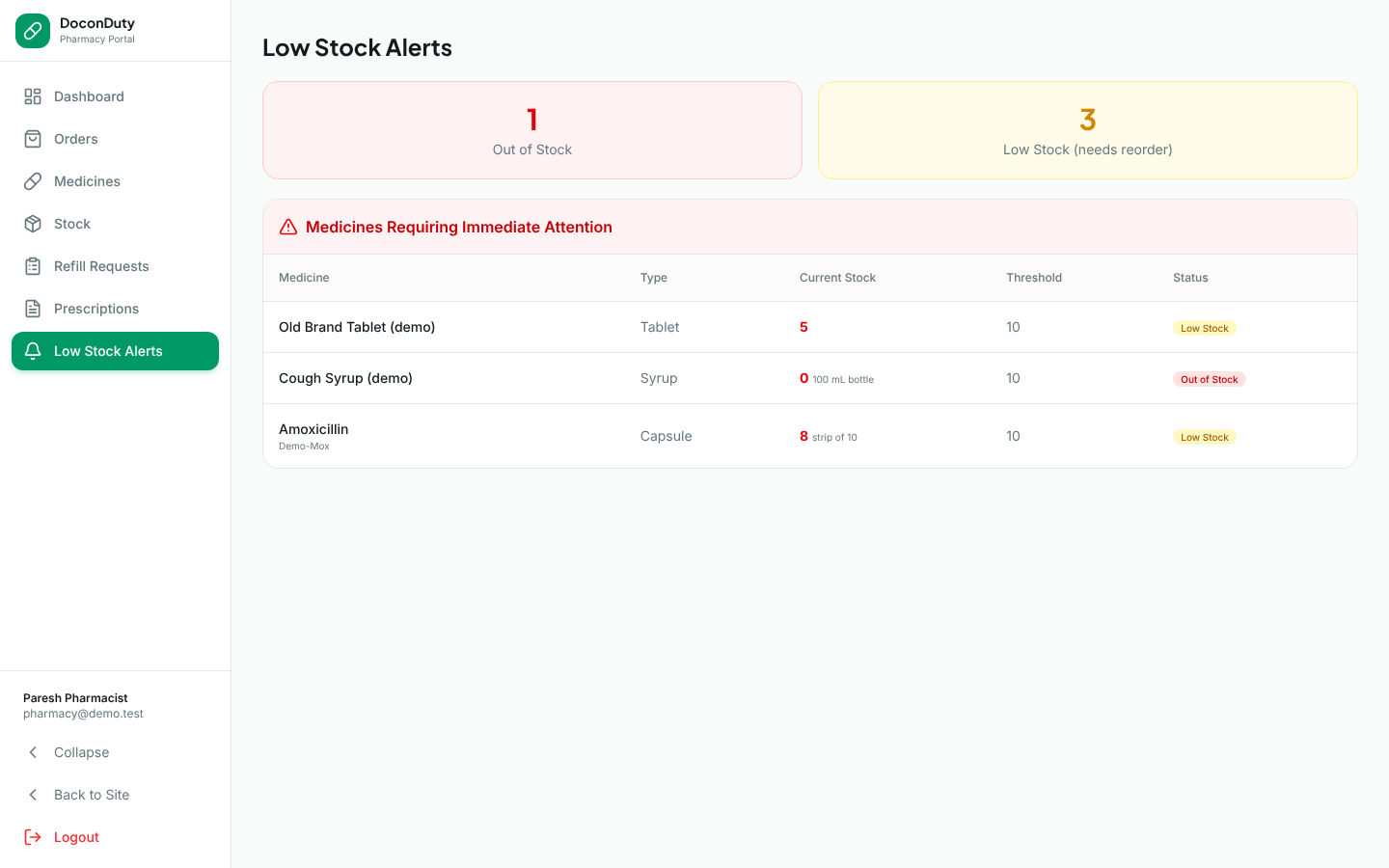
Select Low Stock Alerts to see counters for Out of Stock and Low Stock (needs reorder), and the list Medicines Requiring Immediate Attention. A medicine is "low" when its current stock is at or below its threshold. When nothing is low you will see All stocks are adequate!
6. View prescriptions
Select Prescriptions (page title Prescription Viewer) and search by patient or doctor in Search patient or doctor.... Each prescription lists its medicines by name with the dosage.
Note: The Prescription Viewer shows the medicine name and dosage only. To check the exact strength, form and maker recorded on a prescription, ask the doctor or a Hospital Admin to open it in their portal (or use the printed prescription).
Important: Always dispense exactly what the prescription says. If a prescription is unclear, or a medicine is shown as unlisted (typed by hand rather than chosen from the medicine master), confirm with the prescribing doctor before dispensing.
7. Pharmacy orders
Select Orders (page title Pharmacy Orders). Search by patient and filter by status. To update an order, choose its new status from the menu on the order: Pending, Processing, Dispatched, Delivered or Cancelled.
Note: Pharmacy orders mostly come from patients through the Patient Portal or from the Admin Portal Pharmacy page. Changing an order's status does not change stock.
8. Refill requests
A refill request is a patient asking for a repeat of an earlier prescription.
- Select Refill Requests. Filter with All, Pending, Approved or Rejected.
- For a Pending request, you may type Notes (optional).
- Select Approve or Reject.
Important: Only approve a refill when the prescribing doctor has agreed to it. Approving here records the decision; it does not create a new prescription or change stock. (A Hospital Admin approving a refill on the Admin Portal Prescriptions page does create a new prescription.)
9. Dispensing and automatic stock deduction
DoconDuty can take medicines out of stock automatically, but only when a prescription is recorded in the Admin Portal (Prescriptions → New Prescription) with "Dispense from pharmacy stock" ticked. In that case:
- each medicine chosen from the medicine master is reduced by its Qty (or 1 if Qty is blank);
- medicines typed by hand (unlisted) never change stock;
- if any medicine has too little stock, nothing is saved and a message such as "Insufficient stock for Amoxicillin 500 mg: 10 strip of 10 requested, 8 available." explains which one;
- inactive medicines cannot be dispensed.
Prescriptions written by doctors in the Doctor Portal do not reduce stock, and the Pharmacy Portal has no "dispense" button. Agree a routine with your Hospital Admin, for example:
- the Hospital Admin records dispensing in the Admin Portal; or
- you reduce the stock count with Update Stock after dispensing.
Note: Pharmacy Admin accounts cannot log in to the Admin Portal. See Feature Availability.
10. What the Pharmacy Portal does not do
Not available yet:
- Adding, editing or deactivating medicines (ask your Hospital Admin).
- Recording batch numbers, expiry dates or supplier invoices.
- Automatic stock reduction when dispensing from the Pharmacy Portal (see section 9).
- Changing the low-stock threshold (Hospital Admin only).
- Changing your own password (ask your Hospital Admin).
Related: Hospital Admin Guide — Managing medicines · Troubleshooting · Glossary