This chapter is for everyone who uses DoconDuty. It explains what DoconDuty is, how you get an account, how to log in and out, how to find your way around, and how to keep your account safe.
1. What is DoconDuty?
DoconDuty is a website that a clinic or hospital uses to manage its daily work in one place. Depending on your job and your account, you can use it to:
- keep a list of patients and their basic medical details;
- book appointments and manage the waiting queue;
- record vital signs (blood pressure, temperature and so on) when a patient arrives;
- let doctors see their patients and write prescriptions;
- keep a list of the medicines your hospital uses, with their makers and stock levels;
- take medicines out of pharmacy stock when they are dispensed;
- order laboratory tests and record their results;
- create invoices and track whether they are paid.
Each hospital's information is kept separate. Staff of one hospital cannot see another hospital's patients, doctors or medicines.
Important: DoconDuty is a record-keeping and workflow tool. It does not make medical decisions, suggest diagnoses, or check medicine doses. All clinical decisions remain the responsibility of the treating doctor.
2. Who uses DoconDuty?
Every person has an account with a role. The role decides which portal (part of the website) you log in to and what you can do there.
| Role | Portal | Typical person |
|---|---|---|
| Hospital Admin | Admin Portal | Clinic owner, hospital administrator |
| Billing Admin | Admin Portal | Accounts or billing staff |
| Doctor | Doctor Portal | Doctors |
| Front Desk | Front Desk Portal | Receptionist, front-desk staff |
| Pharmacy Admin | Pharmacy Portal | Pharmacist, chemist |
| Lab Admin | Lab Portal | Laboratory technician |
| Super Admin | Admin Portal | DoconDuty platform operator only — not hospital staff |
The website also has a Patient Portal for patients. Patient features are not covered in this guide.
Note: There are no separate roles for nurses, ward staff, cleaners, security or maintenance staff. See Other Staff Roles.
3. How you receive your account
You cannot create a staff account for yourself. Someone with the right authority creates it for you, and DoconDuty sends you an email with your login email address and a temporary password.
| If you are… | Your account is created by… | Where they do it |
|---|---|---|
| A Hospital Admin | The DoconDuty platform operator (Super Admin), when your hospital is added | Hospitals page |
| Front Desk, Billing Admin, Pharmacy Admin or Lab Admin | Your Hospital Admin | Staff page |
| A Doctor | Your Hospital Admin | Doctors page |
When you receive the email:
- Keep it private. Do not forward it.
- Log in with the email address and temporary password it contains (see the next section).
- If you use the Admin Portal, change your password straight away in My Profile (see Changing your password).
- Delete the email once you have changed your password, or once you have memorised it if you cannot change it yourself.
Note: If the email has not arrived after a reasonable time, check your spam or junk folder, then ask your Hospital Admin. Email delivery depends on how your DoconDuty platform is set up.
Note: Doctors can also invite a Front Desk account from the Doctor Portal (Front Desk Staff). That account has the same access as one created on the Staff page and counts towards the same subscription limit. If an older invited account logs in but shows no patients or appointments, see Troubleshooting.
4. Logging in
Purpose: Open your portal so you can start work.
Who can do this: Everyone with an active account.
Before you begin: You need your login email address and password, and the web address of your DoconDuty website.
Steps:
-
Open your web browser (for example Chrome, Edge, Firefox or Safari) and go to your DoconDuty website.
-
Scroll down the home page to the section called Choose Your Portal.
-
Find the card for your portal and select Login to Portal on it:
- Admin Portal — Hospital Admin, Billing Admin, Super Admin.
- Doctor Portal — doctors.
- Pharmacy Portal — pharmacy staff.
- Lab Portal — laboratory staff.
- Front Desk Portal — receptionists and front-desk staff.
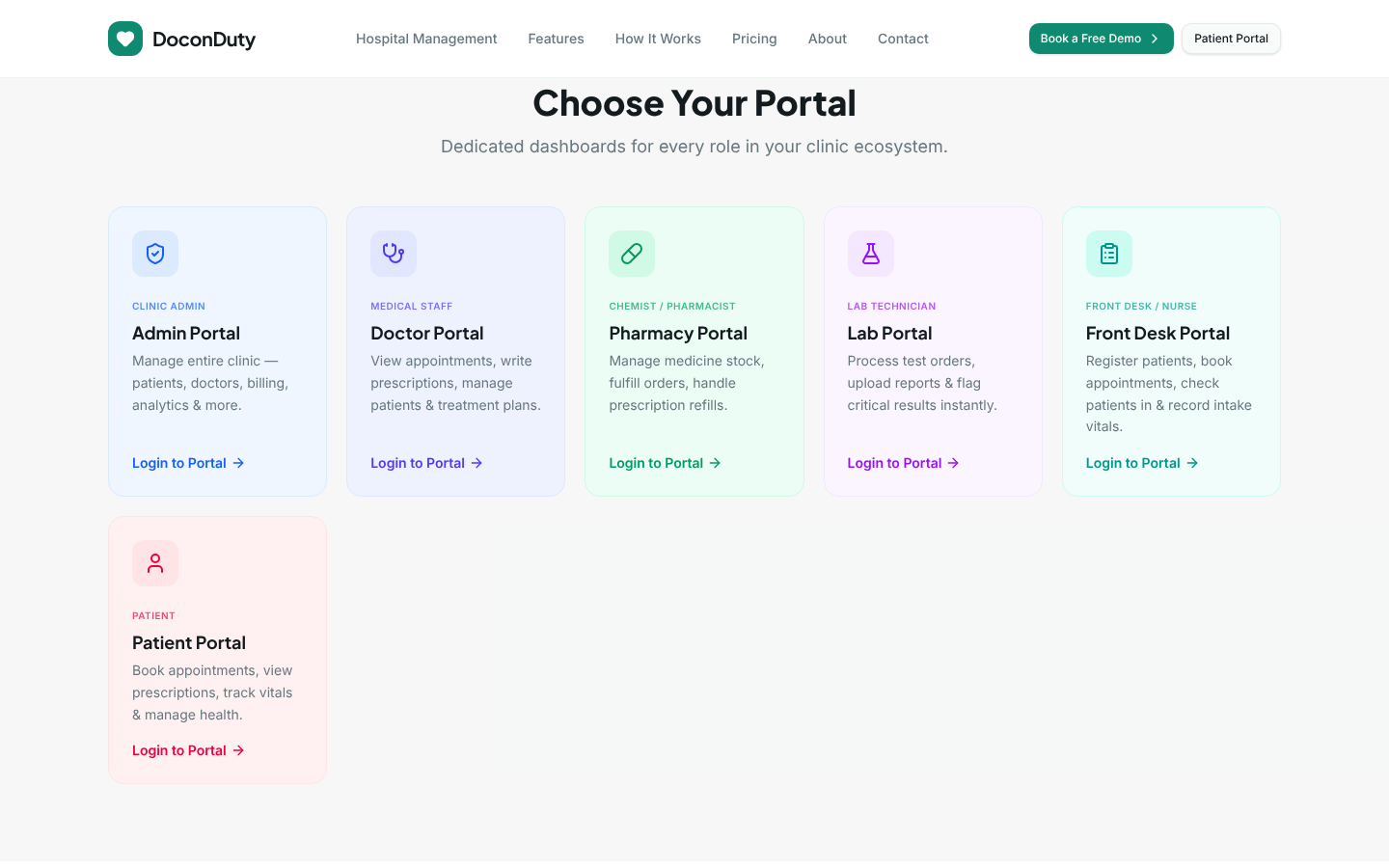
Figure 1 — Choose the portal that matches your job. -
A small login window opens. Type your Email and Password.
- Select the eye symbol in the password box (where shown) if you want to check what you typed. Make sure nobody is watching your screen.
-
Select the button at the bottom, for example Login as Admin, Login as Doctor, Login as Pharmacy, Login as Lab or Login as Front Desk.
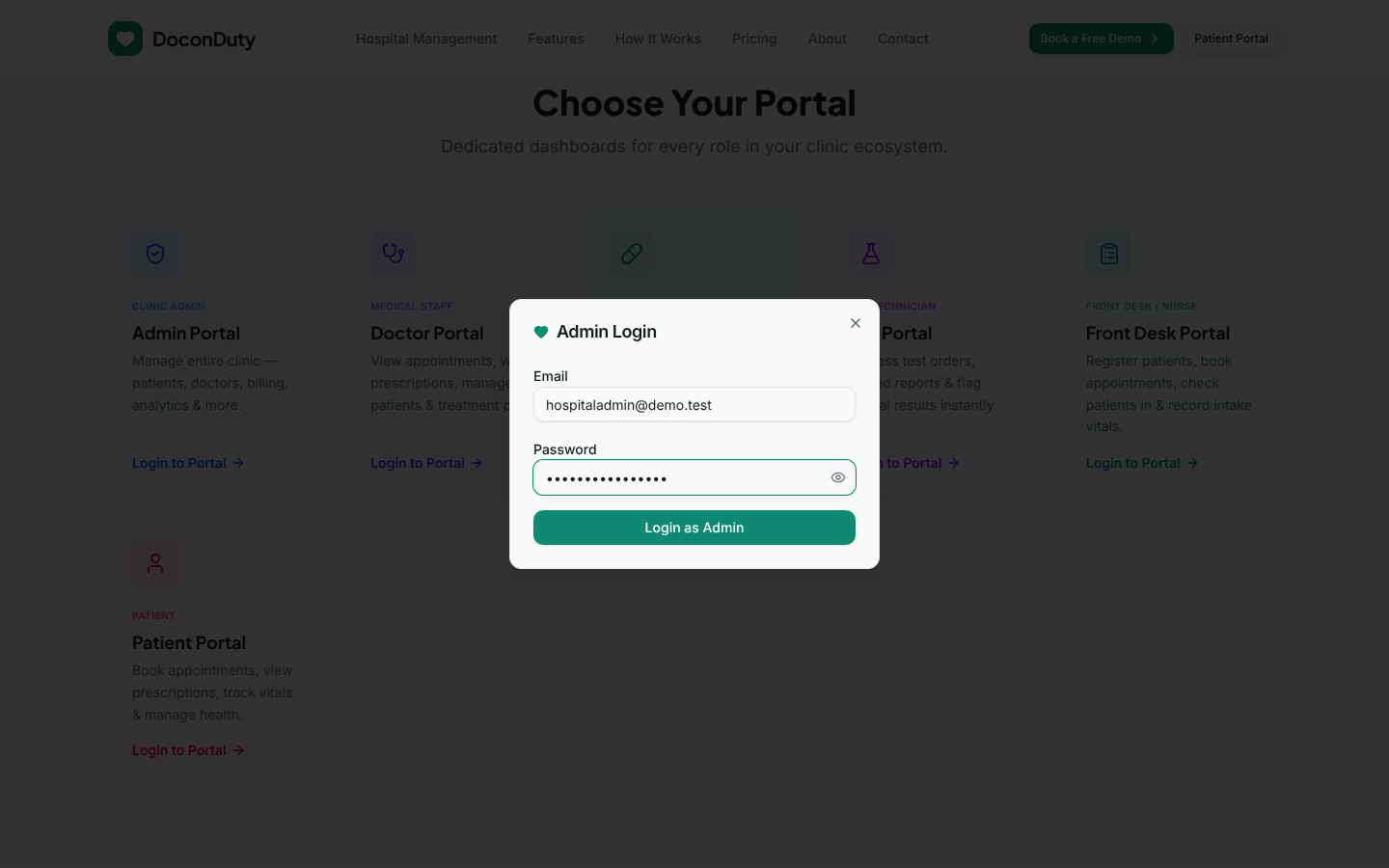
Figure 2 — The Admin Login window. The other portals use the same layout.
What happens next: A green message confirms that you have logged in, and your portal's dashboard opens.
Common problems:
| Message you see | What it means | What to do |
|---|---|---|
| Invalid credentials | The email or password is wrong. | Check for typing mistakes and that Caps Lock is off. Try again. |
| Access denied. Your account does not have access to this portal. | You chose the wrong portal card. | Close the window and use the card that matches your role (see the table in section 2). |
| This account has been deactivated. | Your account has been switched off. | Contact your Hospital Admin. |
| This account has no password set. Contact an admin to reset it. | (Doctors only) No password exists for your doctor account yet. | Ask your Hospital Admin to set one. |
Note: The Patient Portal button at the top right of the home page is for patients only. Staff must use the portal cards in Choose Your Portal.
Note: There is no "Forgot password" link on the login windows. If you forget your password, see Troubleshooting.
5. Finding your way around
After you log in you will see:
- The sidebar on the left — the menu of pages you can open. Select a name to open that page. The page you are on is highlighted.
- Your name and email address near the bottom of the sidebar, so you can confirm you are logged in as yourself.
- Collapse — makes the sidebar narrow (icons only) to give more room. Select it again to widen the sidebar.
- Back to Site — returns to the public home page. This does not log you out.
- Logout — ends your session (see section 6).
- The main area on the right — the page you are working on.
Messages that confirm an action (green) or report a problem (red) appear briefly in the top-right corner of the screen. Read them before moving on.
Recognising which features you can use
The pages you can use depend on your role:
- Doctor, Front Desk, Pharmacy and Lab portals show only the pages for that job.
- The Admin Portal shows the same menu to Hospital Admins and Billing Admins, but each role can only use some of the pages. If you open a page your role does not cover, it will be empty or show an error message such as "Forbidden — this action requires the … permission." This is expected; it is not a fault. See Other Staff Roles for what a Billing Admin can use.
- Platform pages (Super Admin, Hospitals, Subscription Plans, Demo Requests, Settings) are shown only to the DoconDuty platform operator.
6. Logging out
Purpose: End your session so nobody else can use your account.
Who can do this: Everyone.
Steps:
- Save any work you are doing (for example, select Save Prescription).
- Select Logout at the bottom of the sidebar.
What happens next: The message Logged out successfully appears and you return to the home page.
Important: Always log out when you leave a shared computer, even for a short time. Closing the browser tab is not the same as logging out.
Note: You can only be logged in to one staff portal at a time in the same browser. If you log in to a second portal (for example, a doctor who also has a front-desk login), the first session is replaced. Use a different browser or a separate browser profile if you genuinely need both.
7. When your session ends
For security, your login expires after a period of time set by your DoconDuty platform. When this happens, pages may stop loading or show error messages.
What to do: Refresh the page (press F5, or select the reload arrow in your browser). If your session has ended you will be returned to the home page. Log in again.
Important: If you were in the middle of typing (for example, a prescription), the unsaved text may be lost. Save your work regularly.
8. Changing your password
| Your portal | Can you change your own password? |
|---|---|
| Admin Portal (Hospital Admin, Billing Admin, Super Admin) | Yes — in My Profile. |
| Doctor Portal | No screen for this yet. Your Hospital Admin can set a new password for you. |
| Front Desk, Pharmacy and Lab portals | No screen for this yet. Contact your Hospital Admin, who will contact platform support if needed. |
Changing your password in the Admin Portal
- Select My Profile in the sidebar.
- In the Change Password box, type your Current Password.
- Type your new password in New Password and again in Confirm New Password. It must be at least 6 characters long — a longer password is safer.
- Select Change Password.
What happens next: The message Password changed. Please log in again. appears and you are logged out. Log in with your new password.
Common problems:
- Current password is incorrect. — retype your current password carefully.
- New password and confirmation do not match — type the same new password in both boxes.
9. Keeping your account safe
- Use a password that others cannot guess. Avoid your name, your phone number or "123456".
- Do not write your password where others can see it.
- Never share your account. Each person must use their own login so that the records show who did what.
- Change the temporary password from your welcome email as soon as you can.
- Lock or log out of the computer when you step away.
- Do not use DoconDuty on public or untrusted computers.
- If you think someone knows your password, tell your Hospital Admin immediately.
10. If you cannot log in
- Make sure you chose the correct portal card (section 4).
- Check the email address and password for typing mistakes, and that Caps Lock is off.
- Read the message on screen and follow the table in section 4.
- If it still does not work, contact your Hospital Admin. Tell them your name, your email address, which portal you used, and the exact message you saw. Never send your password.
Hospital Admins who cannot solve an access problem should contact DoconDuty platform support (see the guide home).
Next: read the guide for your role — see the guide home.