Restricted section. This guide is for authorised DoconDuty platform administrators only. Hospital staff — including Hospital Admins — cannot see or use these pages. If you are a hospital employee, use the Hospital Admin Guide or the guide for your role instead.
A Super Admin operates the DoconDuty platform as a whole: adding hospitals, creating their first Hospital Admin, managing subscription plans and each hospital's subscription, handling "Book a Demo" sales enquiries, and maintaining website settings.
1. Logging in and the platform menu
Log in through the Admin Portal card with Login as Admin. In addition to the normal Admin Portal menu, Super Admins see:
| Menu item | Purpose |
|---|---|
| Super Admin | Platform admin accounts and their permissions |
| Hospitals | Add hospitals, open their subscription, suspend or reactivate them |
| Subscription Plans | The catalogue of plans hospitals can subscribe to |
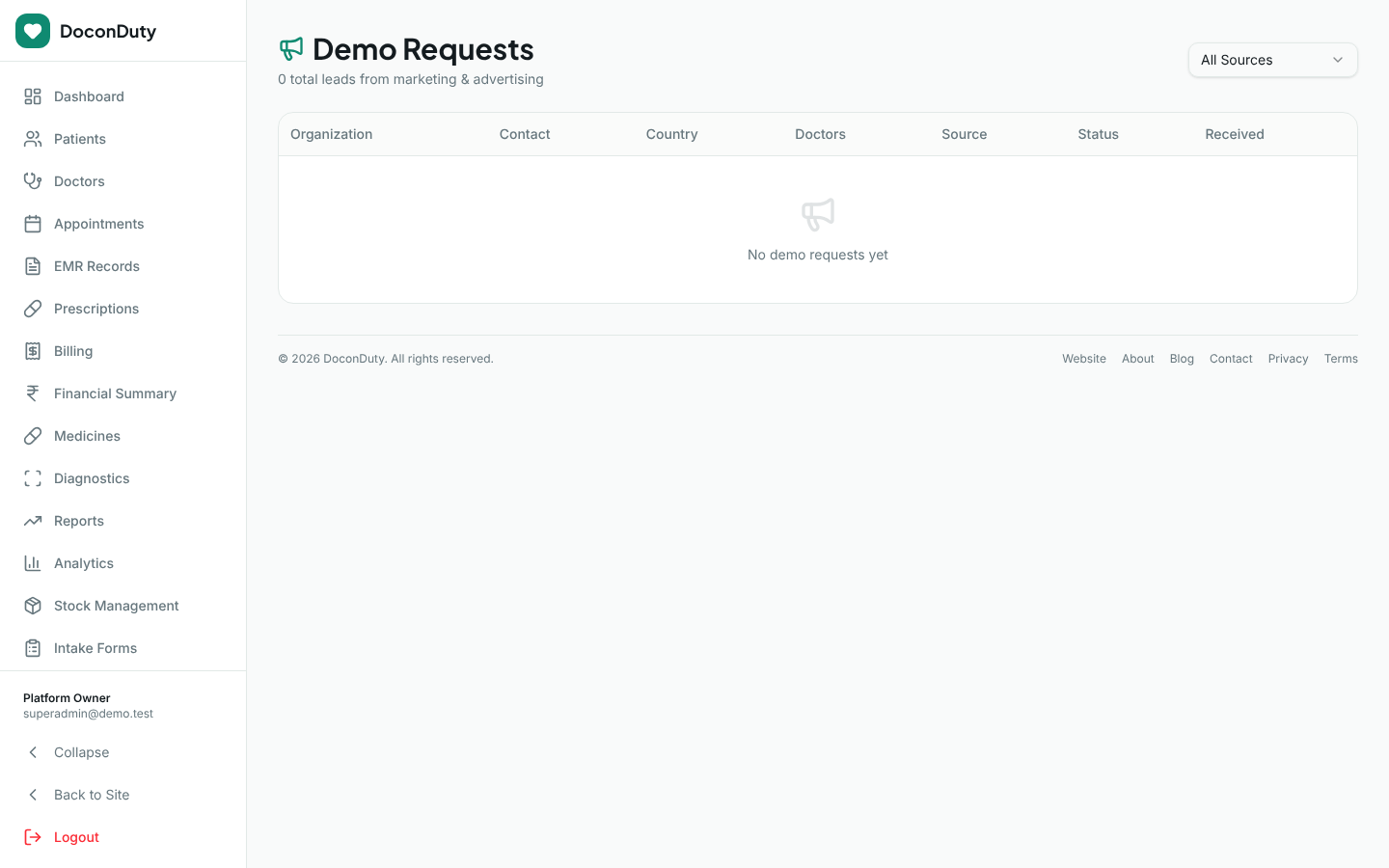
| Demo Requests | Leads submitted through the public Book a Demo form |
| Settings | Platform-wide settings, including Website & Branding |
Hospital Admins cannot open these pages, even by typing the web address.
2. Hospitals
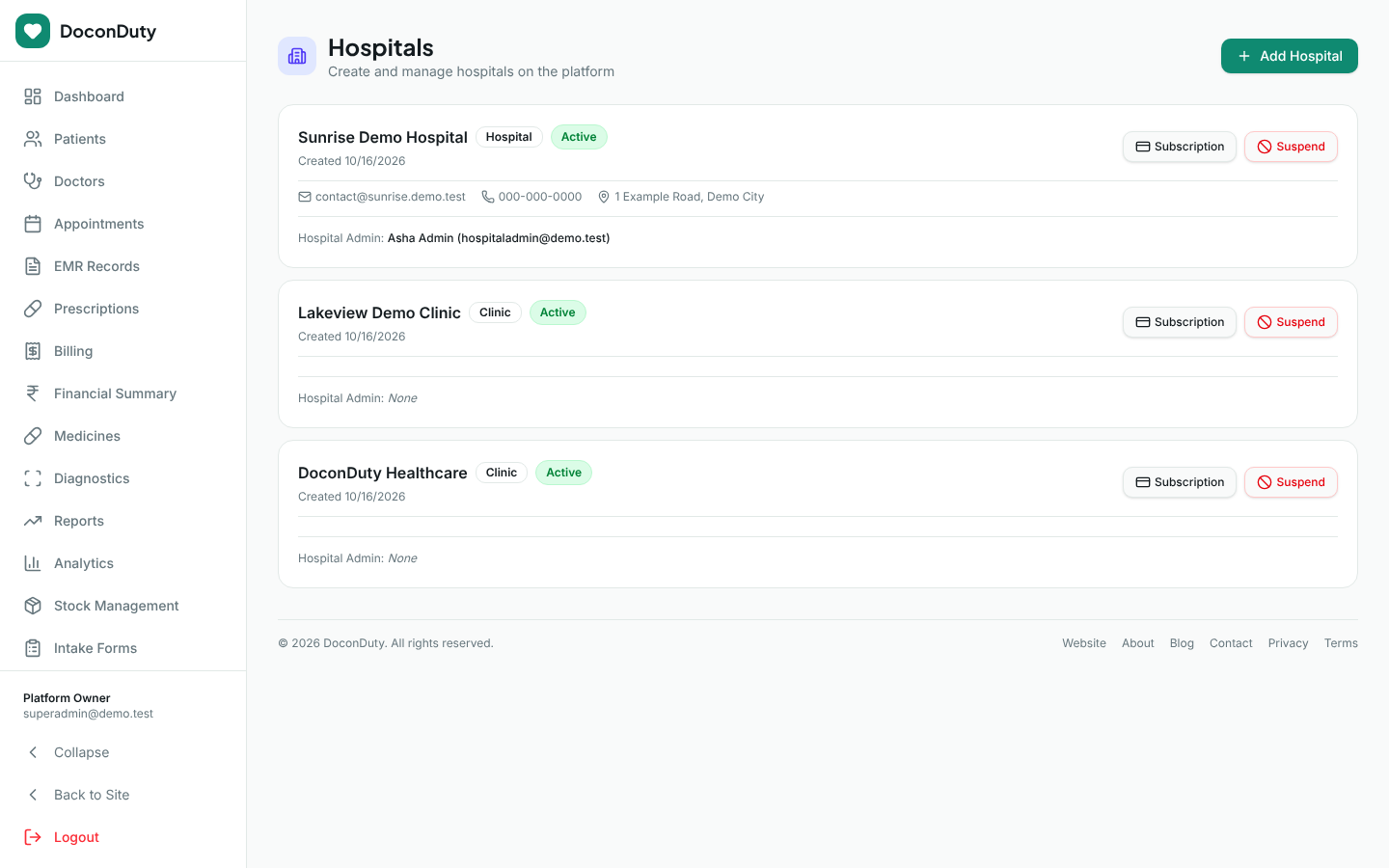
2.1 Add a hospital and its Hospital Admin
Purpose: Bring a new hospital or clinic onto DoconDuty.
Before you begin: Agree the subscription plan with the customer. You need the hospital name and the name and email address of the person who will be its Hospital Admin. The email must not already be used by any DoconDuty account.
Steps:
- Select Hospitals → Add Hospital.
- Under Hospital Information, enter Hospital Name (required), Phone, Email and Address.
- Under Hospital Admin Information, enter Admin Name and Admin Email (required) and Admin Phone.
- Select Create Hospital.
What happens next: The message Hospital created — admin invite email sent appears. The hospital is listed as active and its Hospital Admin receives an email with a temporary password.
Next step: Assign a subscription (section 4). Until a hospital has a current subscription, its Hospital Admin cannot add doctors or staff.
2.2 Suspend or reactivate a hospital
Select Suspend on the hospital, or Activate to restore it. The status badge changes and the message Hospital status updated appears. Suspending does not delete any data.
What suspension does: the hospital's staff — its Hospital Admin, doctors, Front Desk, Billing, Pharmacy and Lab accounts — can no longer log in, and anyone already logged in is refused on their next action. They see the message "Your hospital account has been suspended. Please contact the platform administrator." Other hospitals are not affected, and your own platform pages (including reactivating the hospital) keep working. Selecting Activate restores access straight away.
Note: Suspending a hospital does not change its subscription, and it does not block the hospital's patients from the Patient Portal.
Not available yet: Editing a hospital's name, address or contact details after creation, and changing a hospital's Hospital Admin, are not available from the screens.
3. Subscription plans
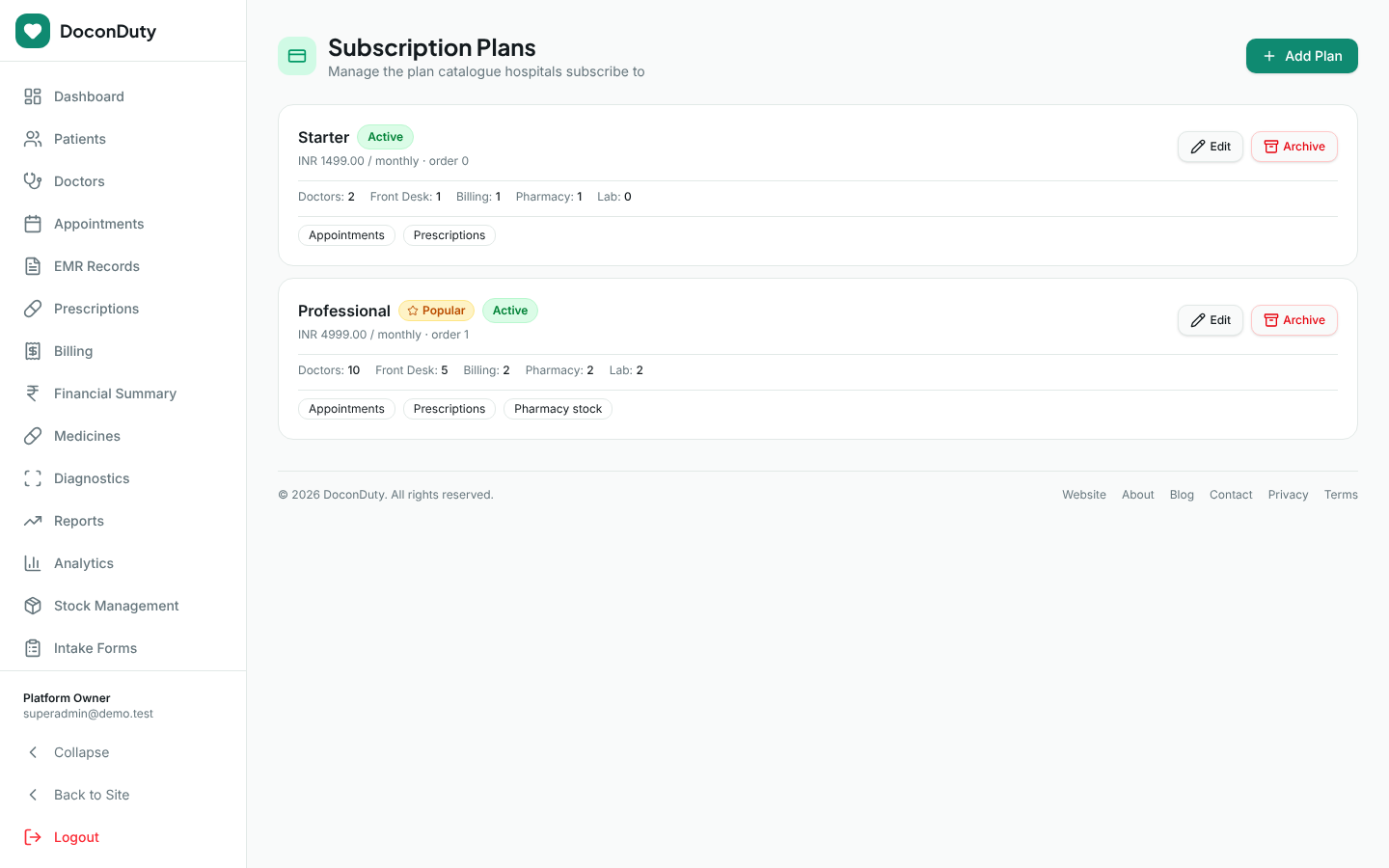
3.1 Add a plan
- Select Subscription Plans → Add Plan.
- Enter Plan Name, Description, Price, Currency (three letters, for example INR) and Billing Interval (Monthly or Yearly).
- Under Account Limits, enter the maximum number of active accounts for Doctors, Front Desk, Billing, Pharmacy and Lab. A limit of 0 means none are allowed.
- Under Features, list the features to display (use Add Feature for more lines).
- Set Display Order and, if wanted, Mark as Popular.
- Select Create Plan.
Active plans appear in the pricing section of the public website.
3.2 Edit, archive or reactivate a plan
- Edit — change the plan's details.
- Archive — retires a plan so it is no longer offered. Plans cannot be deleted.
- Reactivate — makes an archived plan available again.
4. Assigning and managing a hospital's subscription
- Select Hospitals, then Subscription on the hospital.
- If the hospital has no subscription, the window says No subscription assigned yet. Choose the Plan, the Status (normally Active), the Start Date and End Date, and select Assign Plan.
- Optionally record a Manual Payment Record: Payment Method (Bank Transfer, Cash, Other), Received At, Reference (for example a bank reference number) and Notes.
- Optionally set Hospital-Specific Limit Overrides for Doctors, Front Desk, Billing, Pharmacy or Lab. Leave a box empty to use the plan's limit. A value of 0 blocks that account type.
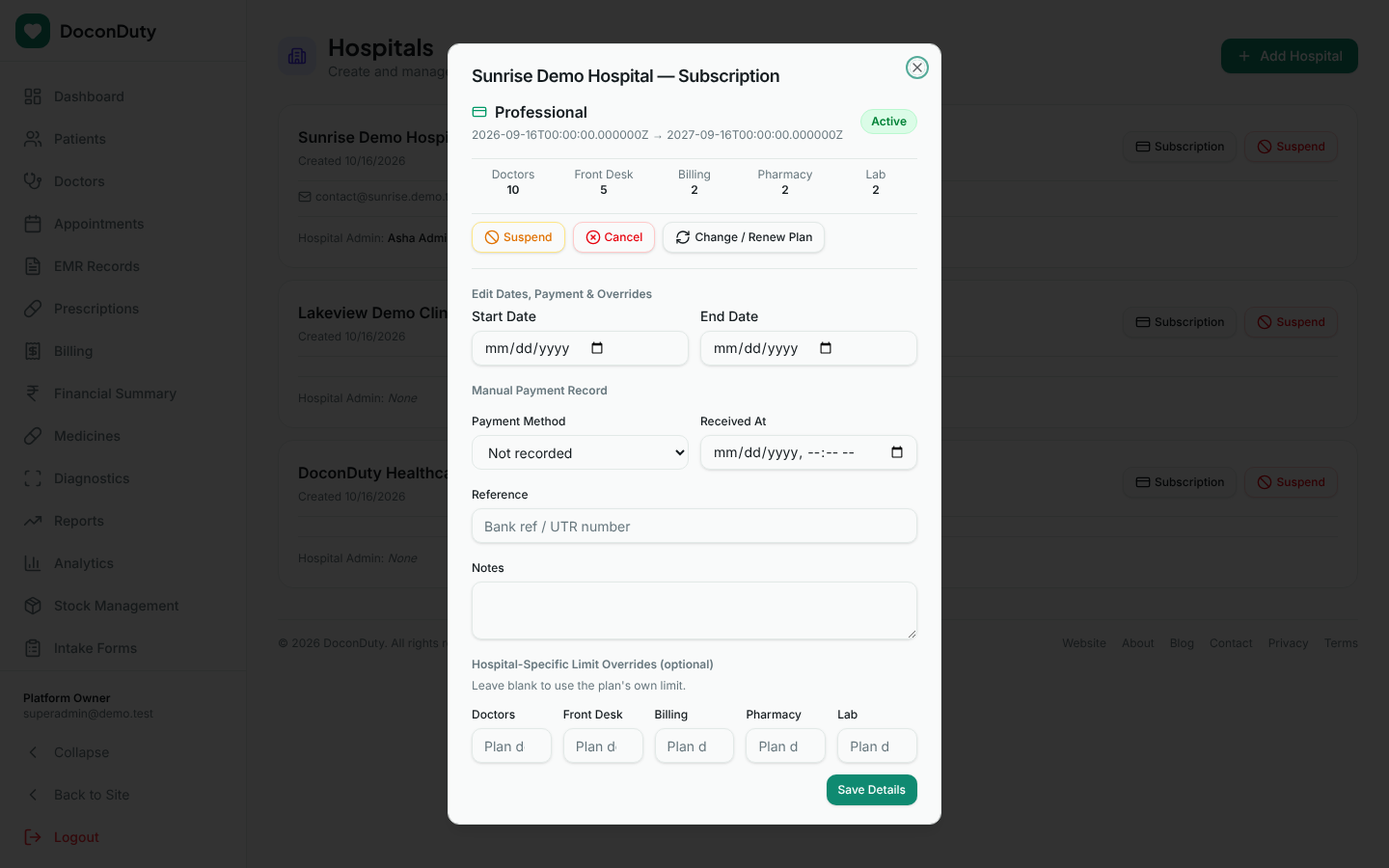
For an existing subscription you can:
- Activate, Suspend or Cancel it;
- Change / Renew Plan — choose a new plan and dates, then Save New Plan;
- edit dates, payment details and overrides under Edit Dates, Payment & Overrides, then Save Details.
Note: The subscription window currently shows dates in a technical format (for example
2026-09-16T00:00:00.000000Z, meaning 16 September 2026), and the Start Date and End Date boxes under Edit Dates, Payment & Overrides appear empty even when dates are set. To be safe, re-enter both dates before selecting Save Details.
How limits work: a hospital can create new doctor or staff accounts only while its subscription is active, has started, and has not passed its end date. Deactivated accounts do not count towards the limit. Existing accounts are not switched off when a subscription ends or a limit is lowered — only new accounts are blocked.
Note: DoconDuty records subscription payments manually. It does not charge cards or send invoices to hospitals.
5. Platform admin accounts (Super Admin page)
The Super Admin page (Manage admins & distribute permissions) lists admin accounts.
- Invite Admin → enter an Email Address → Send Invite creates a platform-level Sub Admin account and emails it a temporary password.
- Custom opens Permissions for …, where you can apply a Quick Preset (Sub Admin, Doctor Admin, Billing Admin, Lab Admin, Pharmacy Admin, Front Desk) or tick individual permissions, then select Save Permissions.
- Hospital Admins' permissions are managed automatically and cannot be edited here.
Important: Accounts created with Invite Admin are not attached to any hospital. Do not use them to give a hospital's staff access — hospital staff must be created by that hospital's Hospital Admin on the Staff page. Give platform-level access only to trusted platform personnel, and review this list regularly.
Note: As Super Admin, adding staff from the Staff page is not supported by the screen (it does not let you choose a hospital). Ask the hospital's Hospital Admin to add their staff.
6. Demo Requests
Demo Requests is the inbox for the public Book a Demo form (the Book a Free Demo button on the website). It is Super Admin only; Hospital Admins never see it.
| Public Book a Demo form | Demo Requests page | |
|---|---|---|
| Who uses it | Anyone visiting the website (prospective customers) | Super Admin only |
| What it does | Collects name, hospital/clinic name, work email, phone/WhatsApp, country, number of doctors, and optionally job role, number of beds and a message | Lists and tracks those leads |
To work a lead:
- Select Demo Requests. Use the source filter (All Sources or a specific source) if needed.
- Select a request to see its details: contact information, doctors/beds, message, and where the lead came from (source, landing page, campaign).
- Update its Status as you progress: New, Contacted, Demo Scheduled, Demo Completed, Trial, Converted or Not Interested.
Important: Demo requests contain personal contact details. Use them only to follow up the enquiry.
7. Settings and Website & Branding
Settings holds platform-wide settings — one set for the whole DoconDuty website, not per hospital. That is why Hospital Admins cannot see it.
- Clinic Information — name, phone, email, address and GST number; save with the button under the form.
- Notifications and Security — switches that take effect immediately (Setting updated).
- Website & Branding — brand name, tagline and logos (Branding); Contact details including the support email and phone shown on the public Contact page; Social Links; Website & SEO; Footer; Business; and Analytics & Cookie Consent (including the Cookie Consent Banner).
Important: The support email and phone you enter under Website & Branding are what hospital users are told to contact for help. Keep them accurate.
8. Medicines without an owning hospital
On the Medicines page, a Super Admin sees only legacy medicines with no owning hospital (entries whose hospital could not be determined automatically). Hospitals cannot see or prescribe these.
- Review the medicine (select the card).
- Confirm with the hospital which hospital it belongs to.
- Select Assign to hospital, choose the Hospital, enter the Reason / evidence (at least 5 characters), tick the confirmation box, and select Assign medicine.
The message "[medicine] assigned to [hospital]" confirms it. The change is recorded for audit. Stock and existing prescriptions are not changed.
9. Things to be careful about
- Never share Super Admin credentials. Use a strong, unique password and change it from My Profile.
- Platform pages affect every hospital. Double-check which hospital you are working on before saving.
- Hospital Admins cannot change their own subscription; they will contact you for plan changes, renewals and limit increases.
- Hospital-level patient data is private to each hospital. Access it only when you have a legitimate support reason.
Related: Feature Availability · Troubleshooting